

Overview
Integrate Exotel with ContactSwing to enable SMS, voice for your agents and campaigns.This guide walks you through the complete setup process — from connecting your Exotel account to configuring it for use within your workflows.
Note: You must purchase phone numbers directly from the Exotel platform. Once purchased, they will automatically appear on the ContactSwing › Phone Numbers page.
🎥 Video Walkthrough
(Video will be uploaded soon..)Step-by-Step Guide
Follow these instructions to connect Exotel with ContactSwing.Retrieve Your Required Keys from Exotel
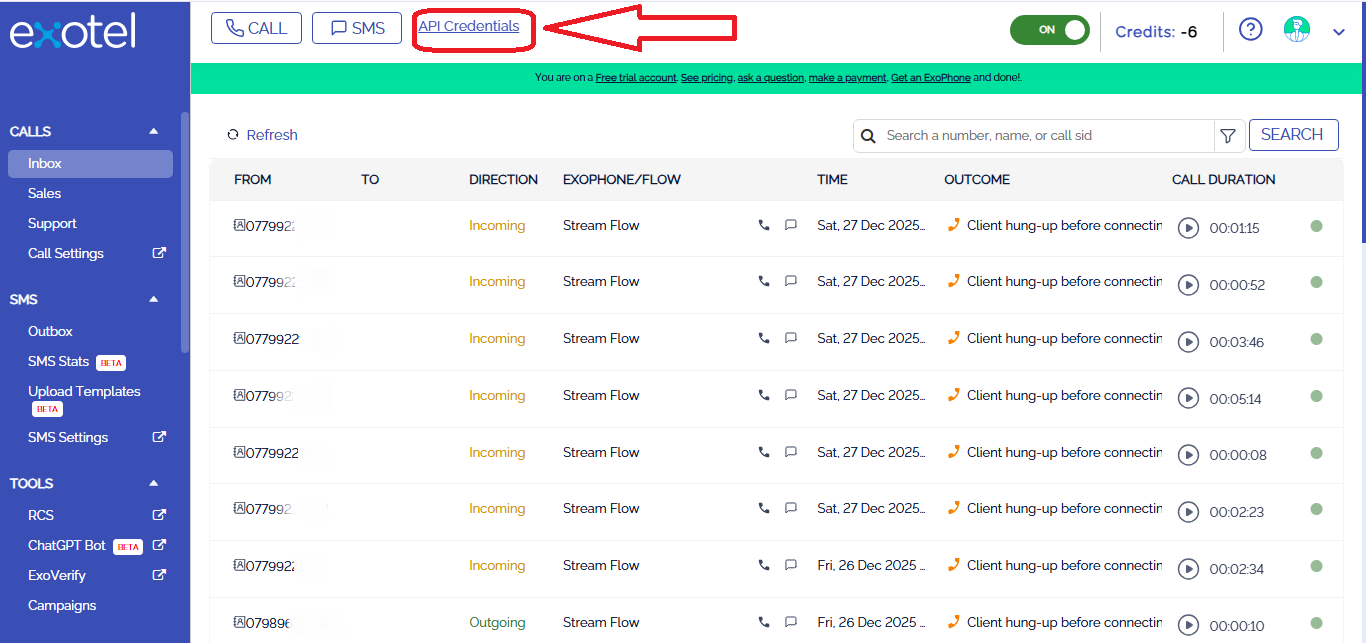
To use the Exotel APIs, you must authenticate using your API Key, API Token, and Account SID.You can find these credentials in your Exotel account dashboard at the link below: Exotel Login and API Credentials Page Click API Credentials to view or manage your existing keys.
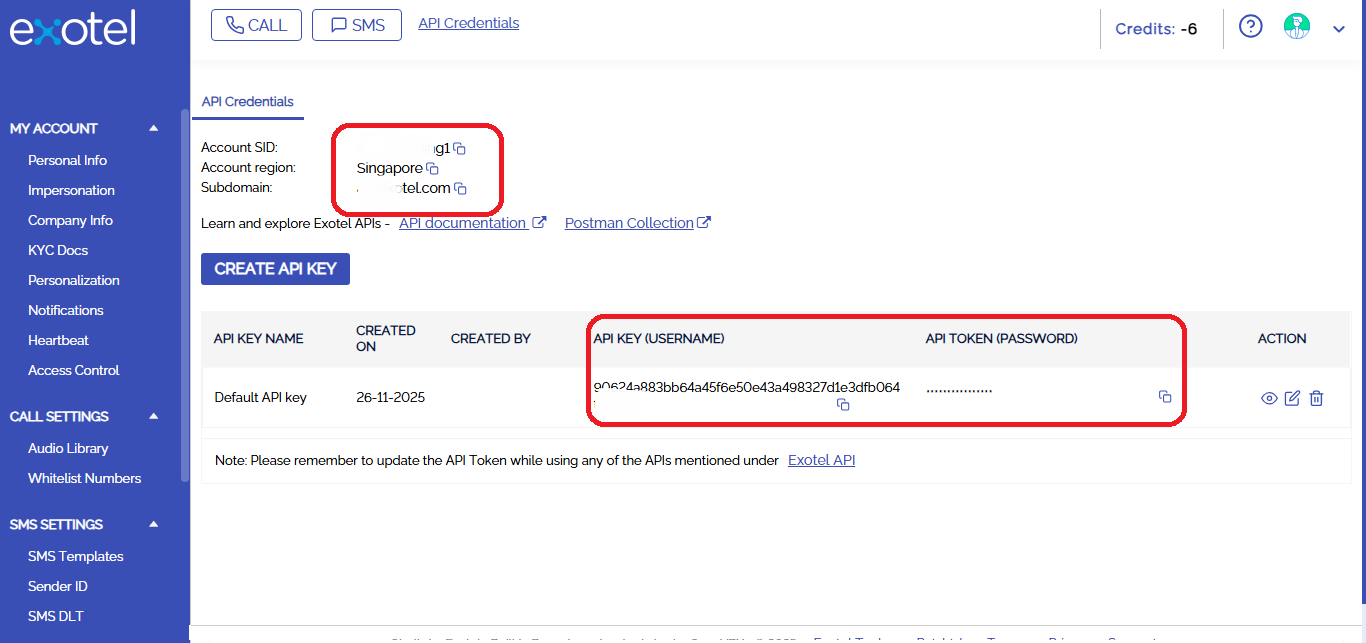 You can also click Create API Key if you wish to generate a new one.
Important:
- Accounts in the Singapore cluster should use the Singapore subdomain.
- Accounts in the Mumbai cluster should use the Mumbai subdomain.
Ensure you select the correct region to avoid authentication errors.
Step-by-step guide
Follow these steps to add the GoHighLevel integration:1
Go to the Integrations section
Go to the Integrations section in your ContactSwing application. This page lists all external services you can connect with your AI agents.Locate and select the Exotel tile to start the integration process.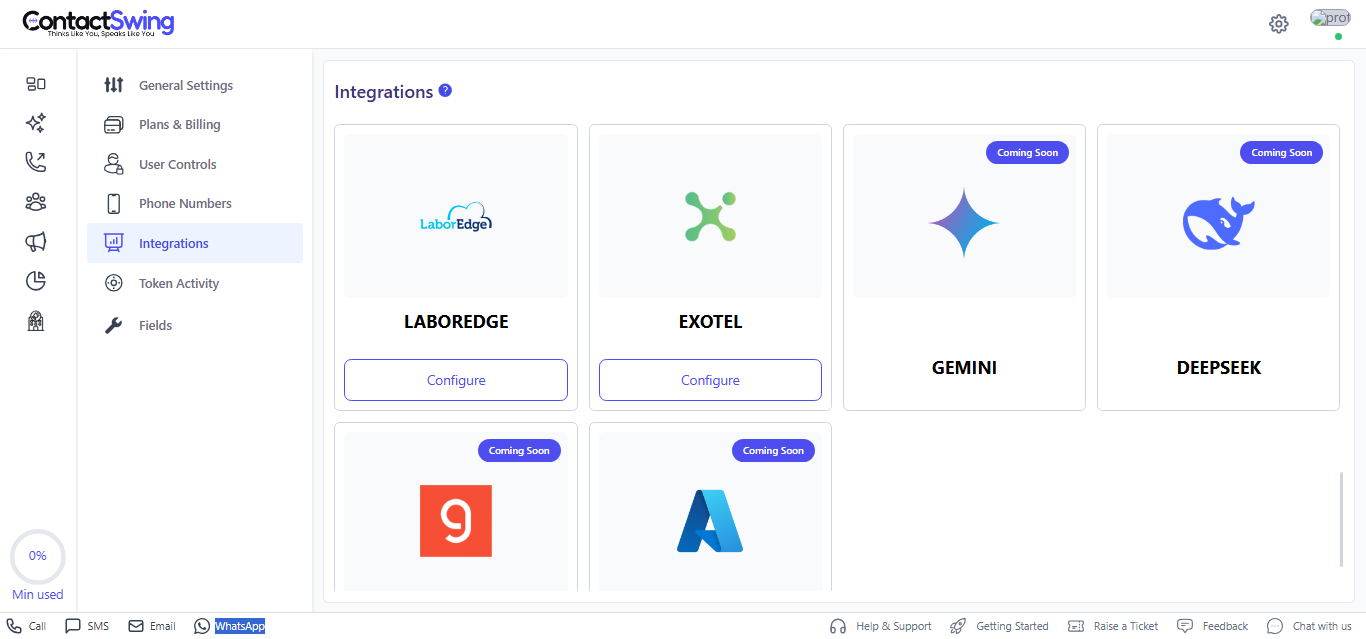
2
Enter Exotel connection details
In the Exotel integration form, enter the credentials you retrieved from the Exotel dashboard: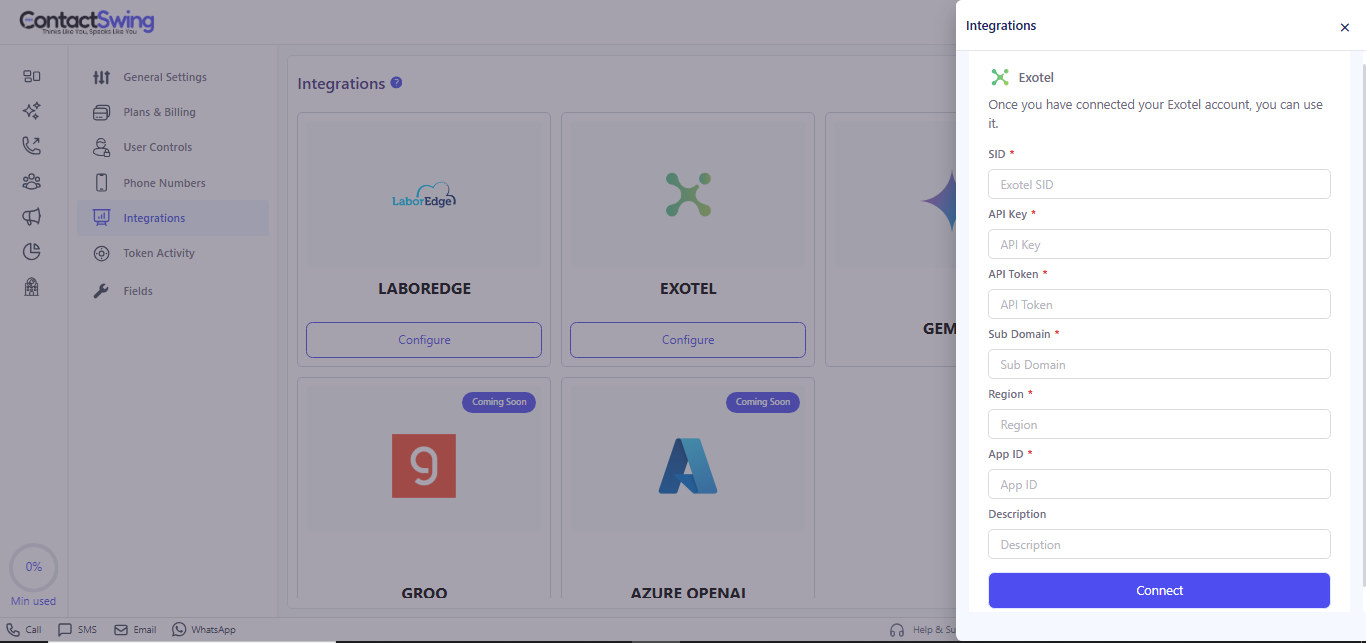
- Account SID: Your Exotel account SID.
- API Key: Your Exotel API key.
- Auth Token: Your Exotel API token.
- Subdomain: Region-specific Exotel subdomain (for example,
app.exotel.comorapp.in.exotel.com). - Region: The region or cluster where your Exotel account is hosted (Singapore or Mumbai).
- App ID: The Exotel App ID you want to use for calls or workflows.
- Description (optional): A short note to identify this connection.
3
Finalize and test the integration
Click Connect to save and activate the Exotel integration.After the connection succeeds, go to Phone Numbers in ContactSwing to confirm that your Exotel numbers are visible and ready to use for calls and SMS.
🔧 How Exotel works in ContactSwing
Once connected, Exotel integration allows you to:- Purchase phone numbers: Buy virtual numbers in Exotel and use them inside ContactSwing for agents and campaigns.
- Send and receive SMS: Use Exotel’s SMS APIs to automate conversations, alerts, and notifications through your AI agents.
- Make voice calls: Place inbound and outbound calls using Exotel’s programmable voice APIs integrated into your workflows.
🧾 Don’t have an Exotel account?
If you don’t already have an Exotel account:- A sub-account can be created for you under a master Exotel account so you can still use numbers for calls and SMS.
- You manage usage and communication costs from your ContactSwing billing dashboard, keeping all charges centralized.