> ## Documentation Index
> Fetch the complete documentation index at: https://docs.contactswing.ai/llms.txt
> Use this file to discover all available pages before exploring further.
# SMS Inbox
Learn how to manage and track your SMS communications effectively. This guide shows you how to use the SMS inbox features for better message management.
### 🎥 Video walkthrough
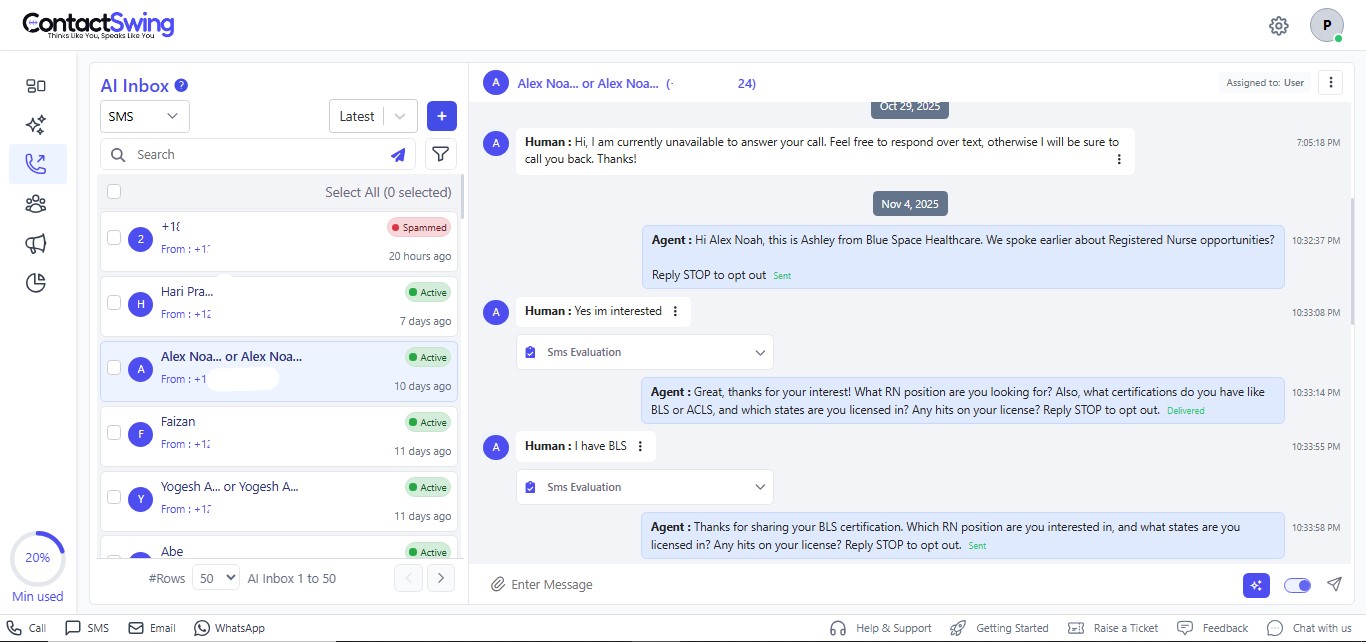
Navigate to the **Text Inbox** section to view your SMS logs.
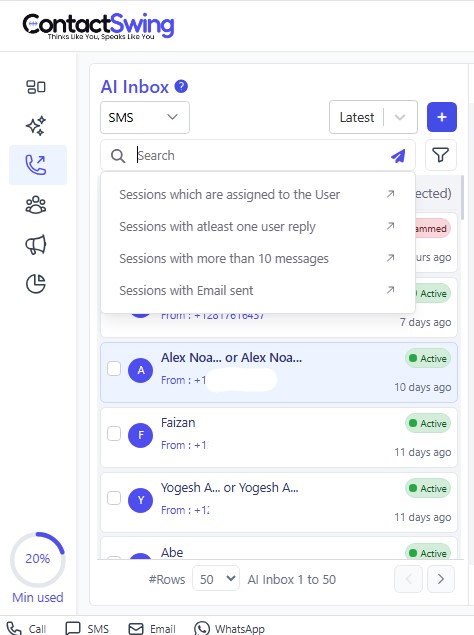
Use the search bar to find specific messages within the Inbox.
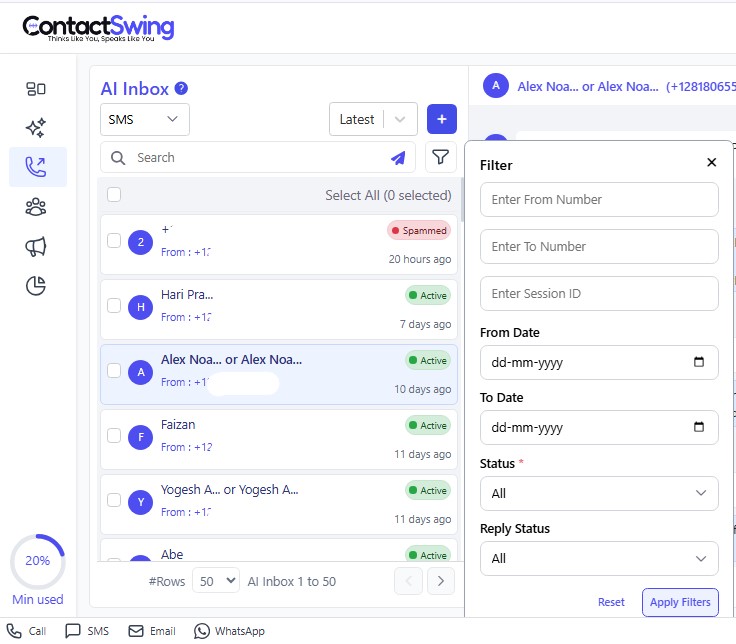
Apply filters to narrow down your SMS logs:
* **From:** Filter by sender's number.
* **To:** Filter by recipient's number.
* **Session ID:** Search using a unique session identifier.
* **AI Agent:** Filter by the assigned AI agent.
* **Date:** Select a date range.
* **Status:** Choose from:
* **ALL**
* **Started:** Message process initiated.
* **Completed by user:** User ended the conversation.
* **Busy:** Recipient was busy.
* **Ringing:** Message is being delivered.
* **Completed by agent:** Agent ended the conversation.
* **No answer:** No response from recipient.
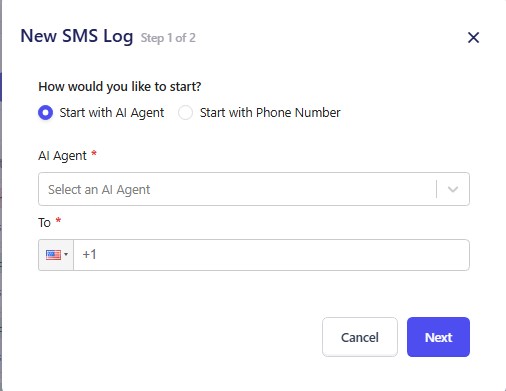
1. **Click "New Log"** to open a new message window.
2. Select **Start with AI Agent** or **Phone Number** to begin a new conversation.
3. **If AI Agent is selected:**
* Choose the AI agent
* Enter the phone number
* Click **Next** to preview
4. **If Phone Number is selected:**
* Enter the **From** number
* Enter the **To** number
* Enter the **Message**
* Click **Next** to review
5. Click **Send** to initiate the conversation.
## Additional notes
The AI Text Management Interface enables you to:
* Track and initiate SMS interactions for customer service and marketing.
* Optimize automation workflows for timely, accurate communication.
* Enhance engagement using AI-powered messaging for sales, support, and outreach.
This system is ideal for businesses managing SMS-based customer support, sales assistants, and other AI-driven messaging solutions. ✨