> ## Documentation Index
> Fetch the complete documentation index at: https://docs.contactswing.ai/llms.txt
> Use this file to discover all available pages before exploring further.
# Real-time Booking Action
Enable real-time booking inside your workflows using RTB actions. This guide explains how to configure and use booking functionality for live scheduling during calls.
## 🎥 Video walkthrough
## Step-by-step guide
Follow these steps to set up your RTB action.
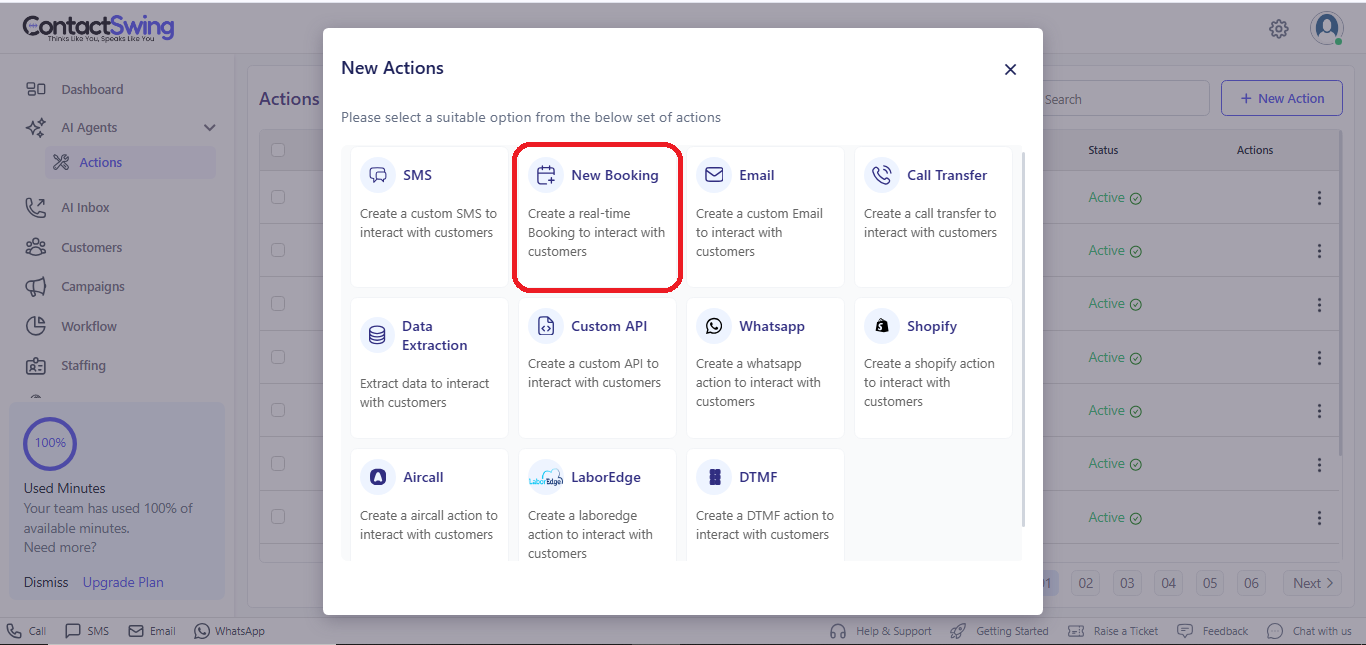
### 1. Select RTB action
Choose **Real-Time Booking Action** from the list of available action types to begin the setup.
 ### 2. Configure your RTB action
Provide the following details.
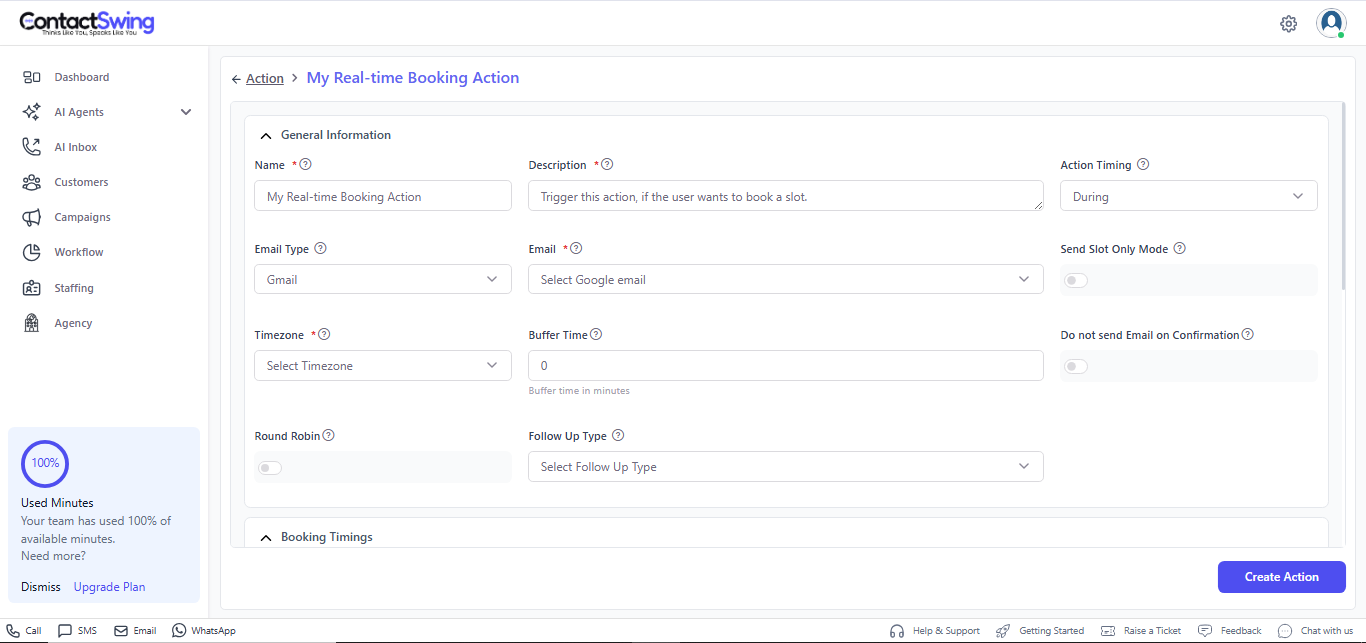
* **Name**: A clear name for the action (for example, "My Real-Time Booking Action").
* **Description**: A short explanation of what this RTB action does (for example, "Action used to schedule bookings during calls").
* **Action Timing**: Select when this action should run within the workflow.
* **Email Type**: Choose the email provider (for example, "Gmail", "Outlook").
* **Email**: Select the specific email address to use for booking communication.
* **TimeZone**: Set the time zone that should be used for booking slots.
* **Buffer Time**: Define the buffer time between bookings, if needed.
* **Do not send Email on Confirmation**: Toggle on if you do not want to send a confirmation email after a booking is created.
* **Round Robin**: Toggle on to distribute bookings in a round-robin manner; when enabled, the second customer will be assigned to the sub-account email for the call.
* **Follow up Type**: Select the follow-up method (for example, "Call", "SMS").
* **Booking Timings**: Choose the time ranges when bookings are allowed.
### 2. Configure your RTB action
Provide the following details.
* **Name**: A clear name for the action (for example, "My Real-Time Booking Action").
* **Description**: A short explanation of what this RTB action does (for example, "Action used to schedule bookings during calls").
* **Action Timing**: Select when this action should run within the workflow.
* **Email Type**: Choose the email provider (for example, "Gmail", "Outlook").
* **Email**: Select the specific email address to use for booking communication.
* **TimeZone**: Set the time zone that should be used for booking slots.
* **Buffer Time**: Define the buffer time between bookings, if needed.
* **Do not send Email on Confirmation**: Toggle on if you do not want to send a confirmation email after a booking is created.
* **Round Robin**: Toggle on to distribute bookings in a round-robin manner; when enabled, the second customer will be assigned to the sub-account email for the call.
* **Follow up Type**: Select the follow-up method (for example, "Call", "SMS").
* **Booking Timings**: Choose the time ranges when bookings are allowed.
 ### 3. Create the action
Once all required fields are filled and your Google Calendar is connected, click **Create Action** to save and activate your real-time booking action.
***
## Example real-time booking action setup
* **Name**: My Real-Time Booking Action
* **Description**: Action for scheduling bookings during calls
* **Schedule a Booking with**: Google Calendar
Using this configuration, your application can handle live scheduling smoothly while calls are in progress.
### 3. Create the action
Once all required fields are filled and your Google Calendar is connected, click **Create Action** to save and activate your real-time booking action.
***
## Example real-time booking action setup
* **Name**: My Real-Time Booking Action
* **Description**: Action for scheduling bookings during calls
* **Schedule a Booking with**: Google Calendar
Using this configuration, your application can handle live scheduling smoothly while calls are in progress.